Getting Started with xUnit.net v3 2026 May 2
In this document, we will demonstrate getting started with xUnit.net v3 when targeting .NET 8 (or later) and/or .NET Framework 4.7.2 (or later), showing you how to write and run your first set of unit tests. We will be using the .NET SDK command line.
Note
The examples were done with C#, xUnit.net v3 4.0.0-pre.108, .NET SDK 10.0.102, and .NET 8. The version numbers, paths, and generated templates may differ for you, depending on the versions you're using. The instructions for .NET vs. .NET Framework are identical other than picking the appropriate target framework; however, .NET Framework is only officially supported on Windows. (Mono is a deprecated technology to run .NET Framework code on Linux and macOS, and may continue to work without official support.)
Download the .NET SDK
The .NET SDK is available for download for Windows, Linux, and macOS.
Once you've downloaded and installed the SDK, open a fresh command prompt of your choice (CMD, PowerShell, bash, etc.) and make sure that you can access the command line by typing dotnet --version. You should be rewarded with a single line, describing the version of the .NET SDK you have installed:
$ dotnet --version
10.0.102
Note
The first time you run the dotnet command, it may perform some post-installation steps. Once these one-time actions are done, it will execute your command.
Install the .NET SDK templates
We ship templates for creating new projects, and they must be installed before they can be used.
From your command prompt, type: dotnet new install xunit.v3.templates
You should see the output similar to this:
$ dotnet new install xunit.v3.templates
The following template packages will be installed:
   xunit.v3.templates

Success: xunit.v3.templates::4.0.0-pre.108 installed the following templates:
Template Name                   Short Name        Language    Tags
------------------------------  ----------------  ----------  ----------
xUnit.net v3 Extension Project  xunit3-extension  [C#],F#,VB  Test/xUnit
xUnit.net v3 Test Project       xunit3            [C#],F#,VB  Test/xUnit
As of this writing, we ship two templates (xunit3 and xunit3-extension), in three languages (C#, F#, and VB.NET).
You can explore the available command line options by typing dotnet new xunit3 -?. There are options to override the target framework, change the command line experience (xUnit.net native vs. Microsoft Testing Platform), change the dotnet test test runner (VSTest vs. Microsoft Testing Platform), as well as enabling Native AOT (for C# only). For more information on Native AOT support, see Testing with Native AOT.
Create the unit test project
From the command line, create a folder for your test project, change into it, and then create the project using dotnet new:
$ mkdir MyFirstUnitTests
$ cd MyFirstUnitTests
$ dotnet new xunit3
The template "xUnit.net v3 Test Project" was created successfully.

Processing post-creation actions...
Restoring .../MyFirstUnitTests/MyFirstUnitTests.csproj:
Restore succeeded.
The command line options you pass to dotnet new will impact the generated project file. With the default options, it should look something like this:
<Project Sdk="Microsoft.NET.Sdk">

  <PropertyGroup>
    <ImplicitUsings>enable</ImplicitUsings>
    <Nullable>enable</Nullable>
    <OutputType>Exe</OutputType>
    <TargetFramework>net8.0</TargetFramework>
    <TestingPlatformDotnetTestSupport>true</TestingPlatformDotnetTestSupport>
  </PropertyGroup>

  <ItemGroup>
    <Content Include="xunit.runner.json" CopyToOutputDirectory="PreserveNewest" />
  </ItemGroup>

  <ItemGroup>
    <Using Include="Xunit" />
  </ItemGroup>

  <ItemGroup>
    <PackageReference Include="xunit.v3.mtp-v2" Version="4.0.0-pre.108" />
  </ItemGroup>

</Project>
Let's quickly review what's in this project file:
ImplicitUsingsenables implicitusingstatements in your project. In addition to the default set of implicitusingstatements, you can see below that we've added an implicitusingfor theXunitnamespace where the most common xUnit.net types come from. More information about implicit usingsNullableis enabled in this default template. Our libraries including nullable annotations to help you find when you may be accidentally dealing withnullvalues. For example,Assert.NotNullis decorated in such a way that the compiler knows, if this assertion did not fail, then the value passed to it is known to not benull. More information about nullable reference typesOutputTypeis set toExe, because unit test projects in xUnit.net v3 are stand-alone executables that can be directly run. We will see examples of this later in this document. More information about xUnit.net v3 and stand-alone executablesTargetFrameworkis set tonet8.0(which is xUnit.net's lowest supported version of .NET as of the writing of this document). More information about target frameworksTestingPlatformDotnetTestSupportis set totrueto align with the defaultdotnet testrunner being Microsoft Testing Platform. This value is used for .NET 8/9 SDK. The template also generates/updatesglobal.json, used by .NET 10+ SDK to instruct it to use Microsoft Testing Platform.We have included an
xunit.runner.jsonfile in your project by default. You can edit this file and place configuration values into it. More information about xUnit.net configuration filesWe have included one package reference:
xunit.v3.mtp-v2is the core package needed to write unit tests for xUnit.net v3 with support for Microsoft Testing Platform v2. If you choose VSTest as yourdotnet testtest runner, we will also include references to two additional packages (xunit.runner.visualstudioandMicrosoft.NET.Test.Sdk) required to enable VSTest support.
A single unit test was also generated (UnitTest1.cs in this example):
namespace MyFirstUnitTests;

public class UnitTest1
{
    [Fact]
    public void Test1()
    {
        Assert.True(true);
    }
}
Now let's verify that everything is working by running our tests with dotnet run:
$ dotnet run
xUnit.net v3 In-Process Runner v4.0.0-pre.108+342e27492f (64-bit .NET 8.0.23)
  Discovering: MyFirstUnitTests
  Discovered:  MyFirstUnitTests
  Starting:    MyFirstUnitTests
  Finished:    MyFirstUnitTests (ID = '3ed2c082a832619fa1003c0fa9710b968d925f95cb779f1b28a6569a658b808f')
=== TEST EXECUTION SUMMARY ===
   MyFirstUnitTests  Total: 1, Errors: 0, Failed: 0, Skipped: 0, Not Run: 0, Time: 0.072s
Note
You can pass command line options to the test runner when using dotnet run, but you must add -- before passing any command line options. The reason for this is that the .NET SDK differentiates command line options before the -- as command line options for dotnet run itself vs. command line options after the -- as command line options for the program.
Try running dotnet run -? and dotnet run -- -? to see the difference.
Excellent! Let's go replace that sample unit test with our first real tests.
Write your first tests
Using your favorite text editor, open the UnitTest1.cs file and replace the existing test with two new ones:
namespace MyFirstUnitTests;

public class UnitTest1
{
    [Fact]
    public void PassingTest()
    {
        Assert.Equal(4, Add(2, 2));
    }

    [Fact]
    public void FailingTest()
    {
        Assert.Equal(5, Add(2, 2));
    }

    int Add(int x, int y)
    {
        return x + y;
    }
}
If we run the tests again, we should see something like this:
$ dotnet run
xUnit.net v3 In-Process Runner v4.0.0-pre.108+342e27492f (64-bit .NET 8.0.23)
  Discovering: MyFirstUnitTests
  Discovered:  MyFirstUnitTests
  Starting:    MyFirstUnitTests
    MyFirstUnitTests.UnitTest1.FailingTest [FAIL]
      Assert.Equal() Failure: Values differ
      Expected: 5
      Actual:   4
      Stack Trace:
        UnitTest1.cs(14,0): at MyFirstUnitTests.UnitTest1.FailingTest()
  Finished:    MyFirstUnitTests (ID = '3ed2c082a832619fa1003c0fa9710b968d925f95cb779f1b28a6569a658b808f')
=== TEST EXECUTION SUMMARY ===
   MyFirstUnitTests  Total: 2, Errors: 0, Failed: 1, Skipped: 0, Not Run: 0, Time: 0.079s
We can see that we have one passing test, and one failing test. That's exactly what we would expect given what we wrote.
Now that we're gotten our first tests to run, let's introduce one more way to write tests: using theories.
Write your first theory
You may have wondered why your first unit tests use an attribute named [Fact] rather than one with a more traditional name like Test. xUnit.net includes support for two different major types of unit tests: facts and theories. When describing the difference between facts and theories, we like to say:
Facts are tests which are always true. They test invariant conditions.
Theories are tests which are only true for a particular set of data.
A good example of this is testing numeric algorithms. Let's say you want to test an algorithm which determines whether a number is odd or not. If you're writing the positive-side tests (odd numbers), then feeding even numbers into the test would cause it fail, and not because the test or algorithm is wrong.
Let's add a theory to our existing facts (including a bit of bad data, so we can see it fail):
[Theory]
[InlineData(3)]
[InlineData(5)]
[InlineData(6)]
public void MyFirstTheory(int value)
{
    Assert.True(IsOdd(value));
}

bool IsOdd(int value)
{
    return value % 2 == 1;
}
This time when we run our tests, we see a second failure, for our theory that was given 6:
$ dotnet run
xUnit.net v3 In-Process Runner v4.0.0-pre.108+342e27492f (64-bit .NET 8.0.23)
  Discovering: MyFirstUnitTests
  Discovered:  MyFirstUnitTests
  Starting:    MyFirstUnitTests
    MyFirstUnitTests.UnitTest1.FailingTest [FAIL]
      Assert.Equal() Failure: Values differ
      Expected: 5
      Actual:   4
      Stack Trace:
        UnitTest1.cs(14,0): at MyFirstUnitTests.UnitTest1.FailingTest()
    MyFirstUnitTests.UnitTest1.MyFirstTheory(value: 6) [FAIL]
      Assert.True() Failure
      Expected: True
      Actual:   False
      Stack Trace:
        UnitTest1.cs(28,0): at MyFirstUnitTests.UnitTest1.MyFirstTheory(Int32 value)
  Finished:    MyFirstUnitTests (ID = '3ed2c082a832619fa1003c0fa9710b968d925f95cb779f1b28a6569a658b808f')
=== TEST EXECUTION SUMMARY ===
   MyFirstUnitTests  Total: 5, Errors: 0, Failed: 2, Skipped: 0, Not Run: 0, Time: 0.096s
Although we've only written 3 test methods, the test runner actually ran 5 tests; that's because each theory with its data set is a separate test. Note also that the runner tells you exactly which set of data failed, because it includes the parameter values in the name of the test.
Using Visual Studio
Note
These screen shots were taken with Visual Studio 2022 version 17.14.5. Your screen may look slightly different if you have a newer version.
Visual Studio contains a test runner called Test Explorer that can run unit tests from a variety of third party test frameworks, including xUnit.net. The inclusion of xunit.runner.visualstudio (and Microsoft.NET.Test.Sdk) allows Test Explorer to find and run our tests. As of the writing of this document, we support the latest builds of Visual Studio 2022 and 2026.
Visual Studio works on solutions rather than projects. If your project doesn't have a solution file yet, you can use the .NET SDK to create one. Run the following two commands from your project folder:
$ dotnet new sln
The template "Solution File" was created successfully.

$ dotnet sln add .
Project `MyFirstUnitTests.csproj` added to the solution.
Now open your solution with Visual Studio. Build your solution after it has opened. Make sure Test Explorer is visible (go to Test > Test Explorer).
Via Test Explorer
To start, build your project (go to Build > Build Solution). After the build is finished and with a moment for discovery, you should see the list of discovered tests:
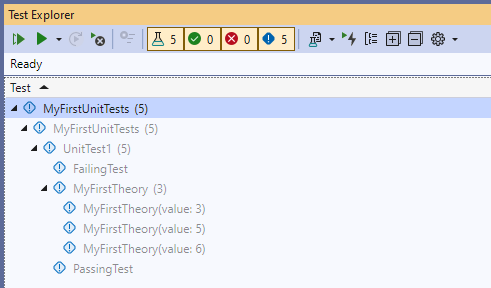
By default, the test list is arranged by project, namespace, class, and finally test method. In this case, the MyFirstTheory method shows 3 sub-items, as that is a data theory with 3 data rows.
Clicking the run button (the double play button) in the Test Explorer tool bar will run your tests:
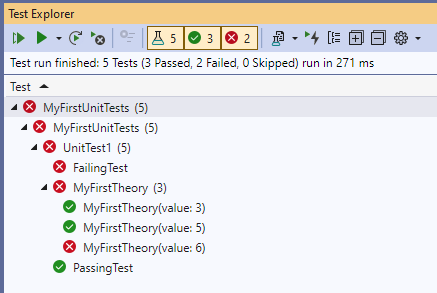
You can double click on any test in the list to be taken directly to the source code for the test in question.
Via source code
You should notice after the build is complete that your unit test source becomes decorated with small blue i icons that indicate that there is a runnable test:
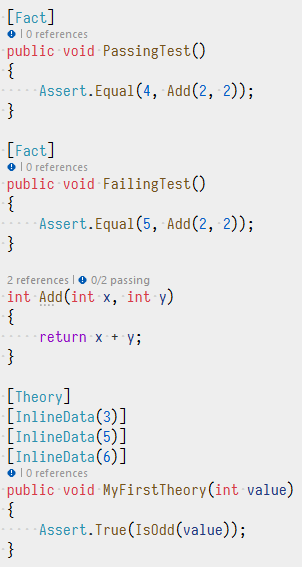
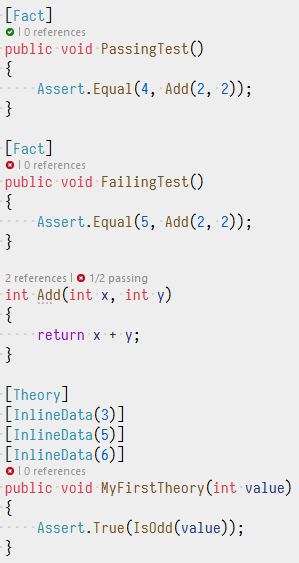
Clicking the i will pop up a panel that will allow you to Run or Debug your tests, as well as navigate to the test inside Test Explorer. After running the tests, you'll see that the icons now change to indicate which tests are currently passing vs. failing:
Using Visual Studio Code
Note
These screen shots were taken with Visual Studio Code version 1.118.1 and C# Dev Kit extension version 3.10.14. Your screen may look slightly different if you have newer versions.
To be able to build C# test projects and run their tests, install the C# Dev Kit extension into Visual Studio Code. The inclusion of xunit.runner.visualstudio (and Microsoft.NET.Test.Sdk) allows the Visual Studio Code testing panel (and the C# extension) to find and run our tests.
From the command prompt, open Visual Studio code on your project folder by running: code .
Using the side bar on the left, click the Explorer side bar (it's probably already selected by default), and make sure Solution Explorer is visible. You should see something like this:
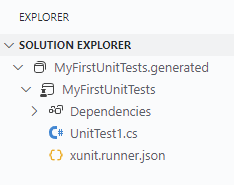
To build your project, right click on "MyFirstUnitTests" and choose "Build".
Via Testing side bar
Once the project has finished building, click on the Testing panel. After a moment of discovery, you should see the list of discovered tests:
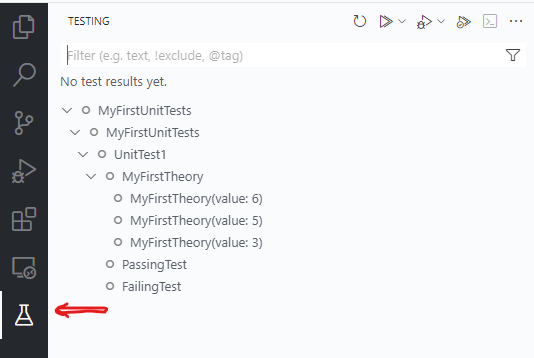
By default, the test list is arranged by project, namespace, class, and finally test method. In this case, the MyFirstTheory method shows 3 sub-items, as that is a data theory with 3 data rows.
Clicking the run button (the double play button) in the Testing panel tool bar will run your tests:
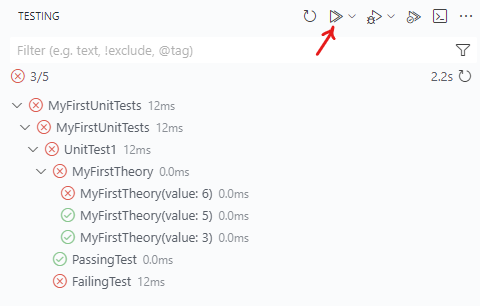
You can double click on any test in the list to be taken directly to the source code for the test in question.
Via source code
Once the project has finished building, you should notice that your unit test source becomes decorated with play icons that you can click to run your tests:
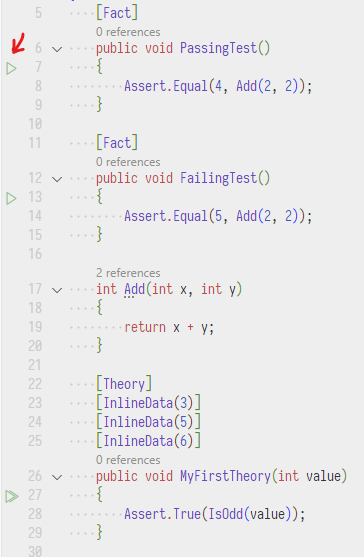
After running the tests, you'll see that the icons now change to indicate which tests are currently passing vs. failing, and failed tests will include failure information inline with your source code:
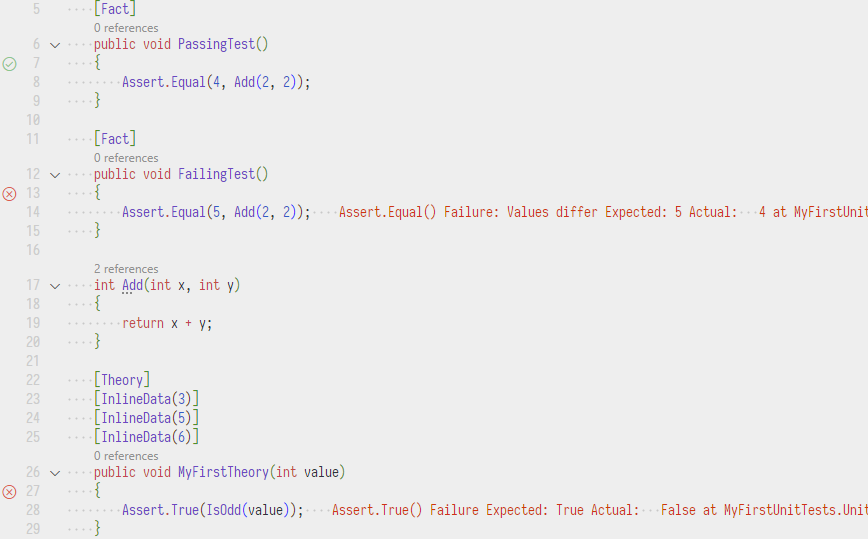
Using JetBrains Rider
Note
These screen shots were taken with Rider 2024.2. Your screen may look slightly different if you have a newer version.
Rider contains a Tests tool window that can run tests from a variety of third party test frameworks, including xUnit.net.
Open your project in Rider. Build the project by right clicking on it and choosing "Build Selected Projects".
Via Tests tool window
Once the project has finished building, click on the Tests tool window. After a moment of discovery, you should see the list of discovered tests:
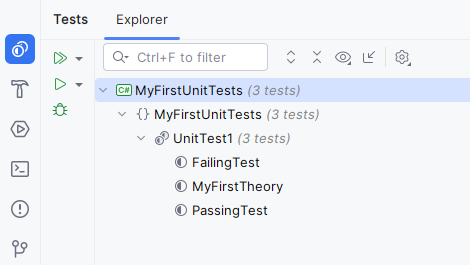
By default, the test list is arranged by project, namespace, class, and finally test method.
Clicking the run button (the double play button) in the Tests tool window will run your tests:
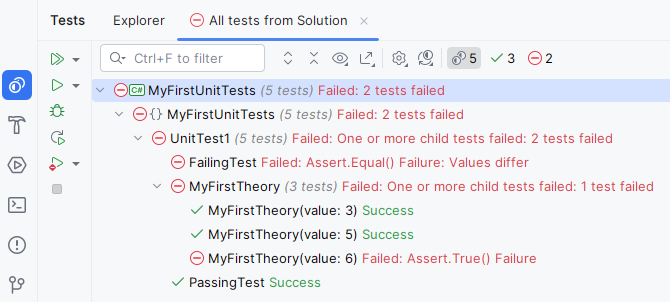
You can double click on any test in the list to be taken directly to the source code for the test in question.
Via source code
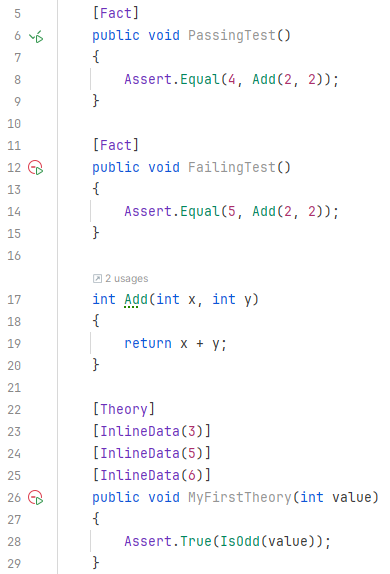
Once the project has finished building, you should notice that your unit test source becomes decorated with play icons that you can click to run your tests:
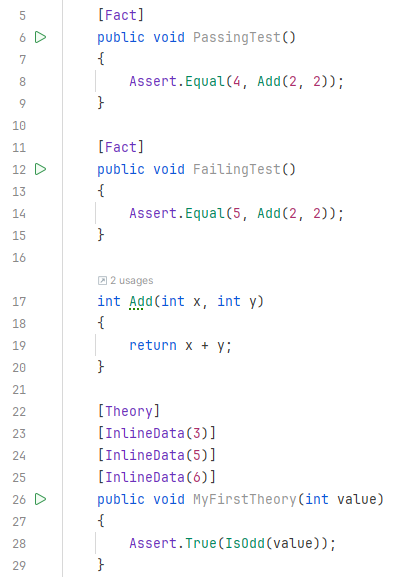
After running the tests, you'll see that the icons now change to indicate which tests are currently passing vs. failing:
Using dotnet test
The default test project template allows using dotnet test to run your test projects, via Microsoft Testing Platform. When running your tests with dotnet test on .NET 10 SDK, you should see output similar to this:
$ dotnet test
Running tests from bin/Debug/net8.0/MyFirstUnitTests.dll (net8.0|x64)
failed MyFirstUnitTests.UnitTest1.FailingTest (8ms)
  from bin/Debug/net8.0/MyFirstUnitTests.dll (net8.0|x64)
  Assert.Equal() Failure: Values differ
  Expected: 5
  Actual:   4
    at MyFirstUnitTests.UnitTest1.FailingTest() in UnitTest1.cs:14
failed MyFirstUnitTests.UnitTest1.MyFirstTheory(value: 6) (0ms)
  from bin/Debug/net8.0/MyFirstUnitTests.dll (net8.0|x64)
  Assert.True() Failure
  Expected: True
  Actual:   False
    at MyFirstUnitTests.UnitTest1.MyFirstTheory(Int32 value) in UnitTest1.cs:28
bin/Debug/net8.0/MyFirstUnitTests.dll (net8.0|x64) failed with 2 error(s) (250ms)
Exit code: 2

Test run summary: Failed!
  total: 5
  failed: 2
  succeeded: 3
  skipped: 0
  duration: 399ms
Test run completed with non-success exit code: 2 (see: https://aka.ms/testingplatform/exitcodes)
Using xunit-console
If you've used previous versions of xUnit.net, you may have used our first party runner: xunit.console.
For v3 starting with the 4.0.0 packages, the new version of this console runner (xunit.v3.runner.console) is shipped as a .NET tool in the package named xunit-console-tool. To globally install the tool, from .NET 10 SDK (or later) use one of the following command lines:
For the latest release version:
dotnet tool install xunit-console-tool --globalFor the latest prerelease version:
dotnet tool install xunit-console-tool --global --prerelease
We ship versions of this tool for the following operating systems:
- Windows (x86_32, x86_64, and ARM64)
- Linux (x86_64, ARM32, and ARM64)
- macOS (x86_64 and ARM64)
Given that a v3 test project can run itself, do you need to use xunit-console? The short answer is: not if you running a single v3 test project. The longer answer is: you might, if you want to run multiple test projects in parallel, and/or you want to include xUnit.net v1 or v2 projects in addition to v3 projects.
Using xunit-console is much like the v2 console runner: you pass it a list of test assemblies, and an optional list of command line options that influence the execution. In its simplest form, you can run it just like this:
xunit-console /path/to/test-assembly-1.dll /path/to/test-assembly-2.exe
For a complete list of command line options, invoke xunit-console with no arguments. Here is an abbreviated example of that output:
On Windows:
$ xunit-console
xUnit.net v3 Console Runner v4.0.0-pre.108+342e27492f [net472/AnyCPU] (64-bit .NET Framework 4.8.9325.0)
Copyright (C) .NET Foundation.

usage: xunit.v3.runner.console <assemblyFile>[:seed] [configFile] [assemblyFile[:seed] [configFile]...] [options] [reporter] [resultFormat filename [...]]

Note: Configuration files must end in .json (for JSON) or .config (for XML)
      XML is supported for v1 and v2 only, on .NET Framework only
      JSON is supported for v2 and later, on all supported platforms

General options

  -assertEquivalentMaxDepth <option> : override the maximum recursive depth when comparing objects with Assert.Equivalent
                                     :   any integer value >= 1 is valid (default value is 50)
[...]
On Linux/macOS:
$ xunit-console
xUnit.net v3 Console Runner v4.0.0-pre.108+342e27492f [linux-x64]
Copyright (C) .NET Foundation.

usage: xunit.v3.runner.console <assemblyFile>[:seed] [configFile] [assemblyFile[:seed] [configFile]...] [options] [reporter] [resultFormat filename [...]]

Note: Only v3 test projects are supported (v1 and v2 are not supported by this runner)
      Configuration files must by JSON format, and the filename must end in .json

General options

  -assertEquivalentMaxDepth <option> : override the maximum recursive depth when comparing objects with Assert.Equivalent
                                     :   any integer value >= 1 is valid (default value is 50)
[...]
A few notable things about running with xunit-console:
On Windows, the new v3 console runner can run both .NET Framework and .NET test projects (although it can only run v3 versions of .NET projects). The v2 version of
xunit.consolecan only run .NET Framework projects. On Linux and macOS, it only supports v3 .NET test projects; .NET Framework is not supported on these OSes.When running v3 test projects, they are run in a separate process. Like previous versions of
xunit.console, it continues to run v1 and v2 test projects in the same process as the console runner (optionally in a separate AppDomain, if needed). Running them in a separate process does incur some overhead vs. running them directly, though in practice this should be fairly benign for most users.Result files from
xunit-consolecontain run information for all tests assemblies in a single report. If you were run each v3 project individually and ask for a result file, it would only include information for that single test assembly.Custom reporters are not available through
xunit-console, as they are installed into the v3 test assembly's runner directly. If you are using a custom reporter, then you must directly run the test project.The NuGet packages that permit this multi-operating system tool installation require .NET 10 SDK or later. If you're using an earlier version of .NET SDK, or you want to use a specific version and bitness of runner on Windows, you may also install the
xunit.v3.runner.consoleNuGet package and use it like you previously used the v2xunit.consoleNuGet package.
Using a response file
In the rare case that your command line exceeds the 32K character limit in Windows, you can use a "response file" to provide the command line arguments rather than the command line.
In "response file mode", the command line must contain only @@ filename, and the filename that's pointed must contain one command line argument per line (no quoting). For example, if you have this command line:
/path/to/MyTestProject.exe -culture en-GB -noLogo -maxThreads 32 -xml "/path/to/The XML Output File.xml"
You would create a response file (we'll call /path/to/response-file) with this content:
-culture
en-GB
-noLogo
-maxThreads
32
-xml
/path/to/The XML Output File.xml
And run the tests with this command line:
/path/to/MyTestProject.exe @@ /path/to/response-file
Response files can be used with:
- Running test projects directly (or via
dotnet run) when using the xUnit.net native command line UX - Running test projects via
xunit-console