Theory Data Stability in Test Explorer 2025 November 27
Note
The screenshots taken here were done with xUnit.net v3, in Microsoft Testing Platform mode, in Visual Studio 2026. The information presented here applies to xUnit.net v2 users (and xUnit.net v3 users in VSTest mode) as well. The displays will be slightly different in those situations.
Why isn't my test running?
We received a bug report from an xUnit.net user wondering why their theory tests using DateTime.Now don't run in Visual Studio. Most of their tests show as run, but this one never does.
Using this as sample code:
using System;
using System.Collections.Generic;
using Xunit;

namespace CSharp;

public class Repro
{
    public static IEnumerable<object?[]> TestData =>
        [[42], [21.12], [DateTime.Now], [null]];

    [Theory]
    [MemberData(nameof(TestData))]
    public void UnrunTestRepro(object? data) =>
        Assert.NotNull(data);
}
This is what the test discovery looks like inside Visual Studio:
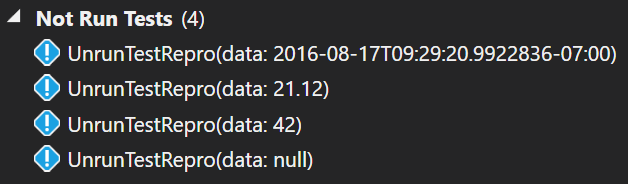
When you click "Run All", this is what Visual Studio shows:
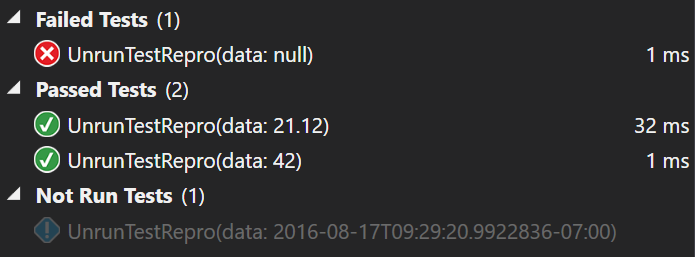
Discovery vs. Execution in Visual Studio's test runner
Unit testing systems are generally split into two phases: test discovery and execution. In the case of the Visual Studio test runner (regardless of the underlying test framework), it runs the discovery phase in order to populate the list of tests in Test Explorer, and it runs the execution phase to run the tests the user wants to run.
The problem comes in when subsequent discovery runs end up returning different values; in our case, that means the DateTime.Now. For users using xUnit.net v3 (in the default "Microsoft Testing Platform mode"), the list of tests includes unique IDs for the test; when using xUnit.net v2 (which only supports VSTest) or xUnit.net v3 (in "VSTest mode"), the list of tests includes a serialization of the test including the data.
When you're in "Microsoft Testing Platform mode", you will never be able to run that individual test; that's because MTP will request that we run the test which matches the unique ID that they have in hand. The unique ID's calculation includes the data from the data row. So when xUnit.net rediscovers all the tests to try to find the one with the matching unique ID, it cannot, because that test doesn't exist any more (a new test with a new DateTime and thus a new unique ID exists in its place). That means, even if you say "run all", it will still not be able to run that test.
When you're in "VSTest mode", you will be able to run the individual test, because VSTest will request that we run the test with the given serialization. That means we can recreate the test without discovery and run it. However, if you ask to run all tests, then it won't run, because "run all" performs a combined discovery and execution pass, and we will end up running a test with a different DateTime value and report that result to Test Explorer. In that case, Test Explorer will ignore the new test with the new DateTime because it doesn't match any test in its list.
Theory data stability
What we're experiencing here is "unstable theory data"; that is, the data we retrieve each time we enumerate the tests during discovery is different, and therefore not repeatable. We are running a test very much like the ones we originally discovered, but not identical.
If your data doesn't need to be unstable, the simplest way to resolve the issue is to stabilize the data. In this case, use a specific (and constant) DateTime value rather than using DateTime.Now.
What if you can't (or don't want to) have stable data? For example, let's say you wanted to do fuzz testing, which returned seemingly random data every time you enumerated it. Each time you rebuild in Visual Studio, the list of test values changes, and the "Run All" button becomes effectively useless.
The most common way to fix this issue is to tell xUnit.net not to perform data enumeration during discovery:
[MemberData(nameof(TestData), DisableDiscoveryEnumeration = true)]
Now Test Explorer will only show a single entry for your test method, and when you run it, all the results of the individual data elements will be shown when you click on the test in the tree:
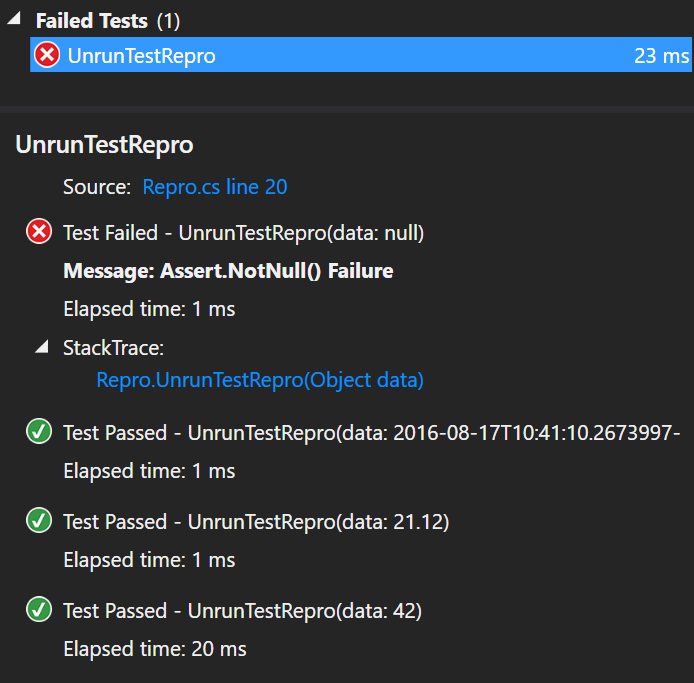
This allows you to continue to successfully run and report all the test results, albeit at the expense of being able to run any one individual data row.